Technical description
This document provides technical details about the behaviour and functionality provided by the tools included in the software suite. It is meant to complement the more introductory Getting Started page by providing details necessary to customize the entire process to specific requirements a user can have.
If you are new to MakoOptimize and want to learn fundamental first, consider starting with "Getting Started" first.
Mako home directory
Various elements and properties of the system are defined with respect to the Mako home directory.
By default it is set to ~/.mako for standard installation and {package_dir} for development (editable) ones.
In either case, the actual directory can be overwritten by specifying MAKO_HOME environmental variable.
The following table lists directories that would normally be found under mako's home, their purpose and typical ways of overwriting them.
| Directory | Purpose | Overwrite with |
|---|---|---|
$MAKO_HOME/configs |
default root folder for configuration look-up | --configs-dir |
$MAKO_HOME/data |
directory to store and lookup dataset files | --data-dir |
$MAKO_HOME/session |
root folder for storing tuning sessions | --session |
$MAKO_HOME/results |
root folder for stroing tuning results | --results |
Tip
You can check the effective defaults for these directories by running mako info --config.
Tuning setting
Tuning is a process of searching for the best-performing set of parameters. Formally, it constitutes a non-linear optimization problem, falling into the broad category of problems known as hyperparameter optimization.
Importantly, the solution to the optimization problem might change depending on a number of external factors, such as: what model is being tuned, what GPU is used to run it, what versions of third-party software are used, etc. We collectively refer to the set of all such factors as a tuning setting.
Setting is a central concept to a lot of technical nuances in MakoOptimize - for example, tuning results will only be used when serving models with mako serve in a matching setting. Therefore, it is worthwhile to keep its existence in mind, especially when digging through logs or investigating any unexpected behaviour.
Currently, the setting is defined by the following variables:
- modal name
- device name
- workload definition (see a separate section for details)
- objective
- hardware platform (nvidia or amd)
- downstream engine and its version
- pytorch version (incl. version of bundled CUDA/ROCM)
- triton version
- system-wide CUDA/ROCM version
Out of these, only model, workload and objective are user-configurable at the moment of launching any mako command, while the rest is pre-determined based on the environment where the command is being run.
Tip
You can check the effective setting for your environment by running mako info --tuning.
Workload
Workload defines what data is used to benchmark an engine when serving a model.
Conceptually, it is supposed to provide the benchmarker with a distribution of
(input tokens, #output tokens) requests, their total number and rate of sending to the server.
Technically, workloads are defined by the following set of parameters:
| Name | Description |
|---|---|
name |
Name of the workload. |
dataset |
Name of a dataset to act as a source of data for this workload. The data is subject to processing according to other fields. See a subsection about datasets for specifics how a dataset is defined. |
max_model_seq |
Maximum model sequence length - maximum required context length that the model has to support: - setting this to None means use the model's maximum- otherwise can be used to restrict context to shorter than what is supported by the model - use this option if your use case allows you to set a maximum on the context length that is significantly shorter than the default of the model, doing so can result in great speedups from the tuning - setting this to values higher than the model's maximum has not been tested and might result in unexpected behaviour, although most likely it will have the same effect as setting it to None |
num_requests |
The total number of requests to make during a single benchmarking session, by default (None) all suitable requests from the dataset will be used |
request_rate |
the rate of sending the requests to the server (how many per second), by default (None) will send as fast as possible |
output_len |
Can be used to enforce common output length per-request, either as an absolute number of tokens (int) or a ratio with respect to the number of inputs tokens (if float, e.g., value of 0.5 means that for request the number of output tokens should be enforced to be 50% of the input tokens); if not set (None, default), each request will produce the number of output tokens as provided in the source dataset |
min_prompt |
Minimum prompt length (input tokens), any entries in the dataset with shorter prompts will be ignored |
max_prompt |
Maximum prompt length |
min_output |
Minimum completion length (output tokens), like above |
max_output |
Maximum output length |
min_seq |
Minimum sequence length (input+output tokens), like above |
max_seq |
Maximum sequence length |
The final workload is generated by taking up to num_requests first requests (or all, if num_requests is not provided) from the dataset that match all min|max_* filter fields and sending them at a specified rate.
If max_model_seq is given, it additionally constraints max_seq.
If num_requests is given but not enough entries from the dataset match all filters, an error will be raised.
Note
The difference between max_model_seq and max_seq might appear blurry at first. It boils down to how "hard" each limit is.
max_seq is a soft limit simply used to filter data used for benchmarking - it will indirectly guide the optimization process
towards configurations that work best when incoming requests are up to a certain length, but will not invalidate the server's
ability to handle longer ones. On the other hand, max_model_seq is a hard limit - the resulting server configuration might
straight up refuse running any requests longer than this limit.
Datasets
A dataset is a crucial piece needed to define any workload. It provides specific data that, in some form, will be used when benchmarking a server. While a dataset defines available data, its the workloads specification that determines which ones and how exactly will be used. Therefore, a single dataset can very well be used to define multiple workloads.
Technical definition of a dataset consist of the following:
| Name | Description |
|---|---|
name |
Name of the dataset. |
files |
A list of files making up the dataset. |
Where each file is further defined with:
| Name | Description |
|---|---|
filename |
The name of a file, as visible in the file-system (this should be the name only, not a full path). |
checksum |
A SHA256 checksum of the file. If empty, content will not be validated. |
url |
A URL from which the file can be obtained if it is missing. If empty, indicates a file cannot be downloaded. |
Dataset lookup and auto-downloading
Whenever a dataset is needed by any of the mako commands, it will be looked-up in a number of directories - the look up is done independently for each of the files listed in the files property explained above. By default only a data subdirectory of mako home is considered, but a custom list can be provided with --data-dir.
If a file could not be found in any of the directories, or its checksum does not match, mako will attempt to download it. The download process will try to save the file to one of the folders used for lookup - starting with the first one on the provided list and falling back to the consecutive ones whenever a permission error occurs. Any other error (e.g., checksum mismatch) will terminate the entire process with a failure status, which might propagate further, depending if the file is needed in a particular context.
Warning
Currently the permission check is implemented generically by handling any OSError exceptions, and retrying with a different directory.
Inspecting existing workloads and datasets
Information about available workloads and datasets is loaded from a workload specification YAML config.
Information about these is loaded automatically from a workload specification YAML config.
Like other config files, it is subject to the usual look-up process and can be specified directly by using --workload-spec command-line argument.
MakoOptimize comes with a number of predefined workloads and datasets, which are the default ones if the user does not provide their own specification.
You can check which files provides available workloads and what they are in your environment by running mako info --config.
The list of available default workloads and datasets for the current MakoOptimize version are given below.
Datasets:
| Field | Value |
|---|---|
| Name | sharegpt |
| Description | A filtered version of the popular ShareGPT dataset. |
| File | ShareGPT_V3_unfiltered_cleaned_split_no_imsorry.json |
| URL | https://huggingface.co/datasets/anon8231489123/ShareGPT_Vicuna_unfiltered/resolve/main/ShareGPT_V3_unfiltered_cleaned_split_no_imsorry.json |
| Checksum | 014bcc3352fd62df5bbb7fb8af9b4fd12f87bb8a2b48a147789f245176ac8e4f |
| YAML for custom workloads |
|
| Field | Value |
|---|---|
| Name | rand_10k |
| Description | A precomputed dataset of random requests with 10k inputs tokens per request. |
| File | rand_10k.json |
| URL | https://huggingface.co/datasets/makodev/AutoVllmRandBench/resolve/main/rand_10k.json |
| Checksum | 2c8133e2d0da094315d246beba20fa5142627777b01d1bddd76acc615dc1e14e |
| YAML for custom workloads |
| Field | Value |
|---|---|
| Name | rand_20k |
| Description | A precomputed dataset of random requests with 20k inputs tokens per request. |
| File | rand_20k.json |
| URL | https://huggingface.co/datasets/makodev/AutoVllmRandBench/resolve/main/rand_20k.json |
| Checksum | 98c6f48356480d361420d3cd6647aee2fb27aec6a33f3c5306c26b2ea9aa1d69 |
| YAML for custom workloads |
| Field | Value |
|---|---|
| Name | rand_30k |
| Description | A precomputed dataset of random requests with 30k inputs tokens per request. |
| File | rand_30k.json |
| URL | https://huggingface.co/datasets/makodev/AutoVllmRandBench/resolve/main/rand_30k.json |
| Checksum | 7cf428659c6eeee2908d448cb9de02954e366eb47b1ad3357c4fba02bbd45122 |
| YAML for custom workloads |
Workloads:
| Name | Dataset | num_requests |
max_prompt |
max_seq |
min_output |
output_len |
|---|---|---|---|---|---|---|
default |
sharegpt |
500 | 1024 | 2048 | 64 | default |
rand10 |
rand_10k |
100 | default | default | default | default |
rand10_2048 |
rand_10k |
100 | default | default | default | 2048 |
rand10_4096 |
rand_10k |
100 | default | default | default | 4096 |
rand20 |
rand_20k |
100 | default | default | default | default |
rand20_4096 |
rand_20k |
100 | default | default | default | 4096 |
rand30 |
rand_30k |
100 | default | default | default | default |
rand30_4096 |
rand_30k |
100 | default | default | default | 4096 |
Added in version 1.4.0
You can also use mako datagen to generate synthetic datasets in the appropriate format.
Default workload
The default workload name for all mako commands is default, which defaults to the one mentioned above if no custom specification is in place.
Defining custom workloads
If you have a representative sample of requests that you expect to receive from your users and would like to optimize for them, you can define your own custom workload. Doing so is a great way of improving your chances of better performance improvements and minimizes the risk of tuning results not materialising in practice.
For brevity, the process of defining a custom dataset and related workload is outlines in a dedicated part of the documentation
Objective
Objective defines which of the metrics reported by the benchmarking tool should be the primary subject for optimization during tuning.
The objective is directly related to which of two configurations will be considered better: the one that improves in the objective will always be preferred, regardless of other metrics.
Currently the following objectives can be specified:
| Metrics | Description |
|---|---|
completed |
Total number of completed requests. |
request_throughput |
Number of completed requests per second. |
sending_throughput |
Rate at which input tokens are sent to the server (tokens/sec). |
input_throughput |
Rate of input tokens processed by the server (tokens/sec). |
output_throughput |
Throughput of generated output tokens (tokens/sec). |
mean_ttft_ms |
Average time to first token (ms). |
median_ttft_ms |
Median time to first token (ms). |
std_ttft_ms |
Standard deviation of time to first token (ms). |
p99_ttft_ms |
99th percentile of time to first token (ms). |
mean_tpot_ms |
Average time per output token (ms). |
median_tpot_ms |
Median time per output token (ms). |
std_tpot_ms |
Standard deviation of time per output token (ms). |
p99_tpot_ms |
99th percentile of time per output token (ms). |
mean_itl_ms |
Average inter-token latency (ms). |
median_itl_ms |
Median inter-token latency (ms). |
std_itl_ms |
Standard deviation of inter-token latency (ms). |
p99_itl_ms |
99th percentile of inter-token latency (ms). |
By default, output_throughput is used.
Tip
You can always check available objectives by running mako info --objective
Multi-objective optimization
Added in version 1.3.0
Multi-objective optimization (MOO) is currently supported through additional constraints that can be added on top of the optimized metric.
Each constraint is defined as:
- the name of the constrained metric,
- a binary comparator (
<,>,<=, or>=), - and a threshold value, which should be a Python floating-point literal.
Multiple constraints can be specified, in which case all have to be met.
The constraints can be added using a --constraint CLI option, available for both mako tune and mako serve commands.
During tuning, a configuration with performance violating at least one of the provided constraints will be considered invalid. Invalid configurations are not considered solutions to the optimization problem, hence are also note reported as "Best" configurations etc.
Similarly, when serving a model, the default configuration look-up mechanism will not consider configuration that would violate the provided constraints. This is not applicable if a specific configuration is requested directly.
The number of invalid configurations during tuning is reported at the bottom of the CLI dashboard, as X inv..
Tuning details
Customizing tuning
Tuning can be parametrized in a lot of various ways, which we attempt to summarize here.
Setting
First of all, the setting parametrizes tuning by definition. Its environmental components (type of GPUs, software versions, etc.) cannot be adjusted dynamically and need to be sorted out ahead of time. The remaining ones, such as the objective or workload to use, can be specified by appropriate command line arguments, which are outlines below.
Search space
Search space is the space of all possible parameters and their values, which will be investigated by the tuning process. It is defined in a YAML file, which can be either set directly (see: how to define a custom search space) or will be looked up automatically, similar to other configuration tiles.
Workloads
The specific workload to be used can be selected by passing its name via the --workload command-line argument (see: mako tune reference).
This name should match an entry defined in the workloads specification YAML file that by default is looked up in various location.
Alternatively, the user can overwrite it with the --workloads-spec argument.
Tip
You can check the list of available workloads by running mako info --config
For more details about what workload is, see a separate section. For details about the structure of the YAML file and how to define a custom workload, see a how-to page.
Model split strategy
This refers to how many GPUs are used to launch a single server and how the model is partitioned between them (i.e., different types of parallelism).
There is a couple of important things to note here.
- Only
tensor-parallel(TP) anddata-parallel(DP) are supported model split parameters in the current version. - MakoOptimize requires that each trial during tuning uses the same overall number of GPUs. This is related to how GPU management is currently implemented. It is therefore not straightforward to tune those parameters automatically.
- By default, at the beginning of tuning, MakoOptimize will attempt to find the minimum amount of GPUs capable of running the given model by progressively increasing TP.
- If the user wants to use DP splits instead, or if the TP auto-detection is undesired (e.g., it takes too much time, or the user wants to enforce a certain TP value), specific values for both can be passed to
mako tuneas CLI arguments. See documentation for details.
Non-searchable server arguments
It is possible to prepend arbitrary command line argument, as well as environmental variables, to each server launch. Details are provided in a dedicated page.
Default parameters
By default, the following values are used for tuning:
| Name | Default value |
|---|---|
--workload |
default |
--objective |
output_throughput |
--workload-spec |
looked up |
--extra-args |
looked up |
--search-space |
looked up |
| modal split | auto-detect minimum GPUs by increasing TP |
Configuration lookup
Many of the tuning parameters mentioned in the section above are configurable through YAML files.
If the user provides them directly, by using specific command-line arguments, such as --search_space my_search_space.yaml, the provided file will
be used unconditionally. Otherwise, a relevant configuration file will be automatically looked-up, using an approach outlined below.
First, a set of root configuration directories is determined.
The user can provide them directly, by using --configs-dir argument (can be provided multiple times, in which case all provided directories will be considered, in order of appearance).
Otherwise, they will default to (in order):
- the
configssubfolder in the Mako home directory - the
configssubfolder in the package installation directory etc/makosubfolder under the system prefix location (as reported bysys.prefix)
Then, for each root directory, the look-up mechanism will start searching for a relevant configuration file starting with the most specific locations and progressively falling-back to more generic ones. Whenever a file exists, the lookup stops and the resulting file is used as-is. A new root folder is considered after a file has not been found at all under the previous root.
The specific locations considered for each root folder while searching for a file are (in order):
{root}/{engine}-{engine_version}/{model}/{stem}-{gpu}.yaml{root}/{engine}-{engine_version}/{model}/{stem}-{platform}.yaml{root}/{engine}-{engine_version}/{model}/{stem}.yaml{root}/{engine}-{engine_version}/{stem}-{gpu}.yaml{root}/{engine}-{engine_version}/{stem}-{platform}.yaml-
{root}/{engine}-{engine_version}/{stem}.yaml -
{root}/{engine}/{model}/{stem}-{gpu}.yaml {root}/{engine}/{model}/{stem}-{platform}.yaml{root}/{engine}/{model}/{stem}.yaml{root}/{engine}/{stem}-{gpu}.yaml{root}/{engine}/{stem}-{platform}.yaml-
{root}/{engine}/{stem}.yaml -
{root}/{model}/{stem}-{gpu}.yaml {root}/{model}/{stem}-{platform}.yaml{root}/{model}/{stem}.yaml{root}/{stem}-{gpu}.yaml{root}/{stem}-{platform}.yaml{root}/{stem}.yaml
Or algorithmically:
for root in config_roots:
    for engine in [f"{engine_name}-{engine_version}", engine_name, ""]:
        for model in [model_name, ""]:
            for device in [gpu_name, platform_name, ""]:
                if device:
                    name = f"{stem}-{device}.yaml"
                else:
                    name = f"{stem}.yaml"

                candidate_path = os.path.join(root, engine, model, name)
All non-trivial names (e.g., GPU name, model name) are sanitized by using lower-case letters and replacing spaces with dashes (-) and forward slashes with double dashes (--).
The stem component in the above description refers to the core part of the name, related to which configuration file is being looked up.
The possible values are outlined below:
| Component | Stem name for automatic look-up | Argument to pass arbitrary file |
|---|---|---|
| Search space | search_space |
--search_space |
| Extra arguments | extra_args |
--extra_args |
| Workloads | workloads |
--workload_spec |
Stopping criteria
By default, tuning will run until all configurations from the search space are exhausted. In most practical scenarios, this means running effectively "forever", unless interrupted by the user.
Tip
Interrupting tuning is always fine, since it checkpoints its state regularly.
If this is undesired, there are currently 3 other criteria for automatically stopping tuning. The available options and their command-line arguments are summarized in the table below.
| Option | Description | Argument |
|---|---|---|
| Maximum number of evaluations | This refers to how many times a server has been reconfigured and benchmarked. It does not include any trials that did not result in a full evaluation (e.g., if a configuration is tried for a second time, it will reuse its previous results and will not contribute to this limit). | --max-evals |
| Maximum number of trials | Similar to the above, but does include all trials, even if they did not trigger benchmarking. | --max-history |
| Timeout | The amount of time, in seconds, after which tuning should stop. When set and the timeout occurs, no new evaluations will be queued but any pending ones will be waited for (regardless of how long it might take). | --timeout |
Different stopping criteria can be used at the same time, in which case tuning will stop if either of the events occur.
Note
Some searching algorithms might impose a lower limit on the number of trials.
Tuning results
Information about the best configuration identified during tuning is stored in a separate results file.
The file can either be specified directly by using --results, or can use the default value of: $MAKO_HOME/results/{setting_hash}.{index}.yaml.
Note the same file is used across multiple tuning sessions, as long as their settings match. If a file already exists when a new tuning is started, its content will only be updated by the new process if it finds a configuration better than what is stored in the file at the moment of starting the new tuning.
Warning
If multiple tunings run at the same time in a matching setting, the content of the results file is not currently guaranteed to be saved correctly.
The content of the file includes:
- the tuning setting,
- model split information,
- the best identified configuration - saved as a pair of command-line arguments and environmental variables,
- raw metrics returned by the benchmarker for the best configuration.
Tuning session folder
When started, tuning will create a local directory for storing its state, logs and history of results.
This directory can be named directly, by using --session command-line argument, in which case it is used as provided.
Otherwise, by default, a folder is created with name:
where: $MAKO_HOME refers to the mako home directory, {device_name} is the GPU name used for tuning, {model_name} is the tuned model's name, and {setting_hash} is a MD5 hash of the sorted setting dict, and {index} is an index used to differentiate between different runs with the same hash (starts at 1, see below for details).
Regardless of how the name of the folder is decided, the following steps then happen:
-
if the final name refers to a directory that does not yet exists, it will be created and new tuning will be started. The following information will be saved in the new directory:
- the current setting,
- a dump of environmental variables (subject to filtering to remove potentially sensitive values,
- information about the execution environment.
For details, see the table below.
-
If if the final name refers to an existing directory, there are two main cases:
- the directory exists but the setting information inside it does not match the current setting. In such case:
- if
--sessionwas used, an error will be raised; - if
--sessionwas not used,{index}will be incremented and the process will repeat.
- if
-
Otherwise, the new tuning will attempt to resume from where the previous one stopped - see checkpointing section below for details.
Note
Resuming can be prevented by using one of the two following options:
-
if
--resetis used, any existing folder that would be a candidate for resuming will be permanently deleted instead and the algorithm will continue as if the directory never existedWarning
--resetwill also remove any local information about the best configuration found for the relevant setting. -
otherwise, if
--freshis present, any existing folder will simply be ignored, as if its setting did not match.
-
- the directory exists but the setting information inside it does not match the current setting. In such case:
Apart from the initial information, during the course of running tuning, the process might save additional information in the session folder. The summary of all currently used files is given below for reference:
| File | Description |
|---|---|
env_vars.yaml |
A dictionary of environmental variables present when starting tuning, subject to filtering out any potentially sensitive ones. |
env.yaml |
Collected information about execution environment, Includes things such as: 1) selected installed software and versions, 2) host name and other networking information, 3) processor name, etc. |
events.txt |
A list of time-stamped events that have occurred since the begging, one per line. |
history.yaml |
A list of trialled configurations with their results, one per line. |
progress.yaml |
Numeric information about the tuning's progress: how many evaluations have been completed so far, etc. |
search.{index}.log |
A log file for the top-level tuning process. {index} will increase with each consecutive resumption. |
setting.yaml |
The specific tuning setting at the moment of starting tunning. |
split.yaml |
Information about the model split used during this tuning. |
state.yaml |
Checkpointed state of the searching algorithm. |
worker_{uuid}.log |
A log file for the process overseeing a single testing server, it includes information about stopping and starting the engine process, etc. |
{engine}_server_{uuid}.log |
A log file for the downstream engine process - the {uuid} should match the {uuid} of the worker process that oversees this server. The same file is reused for multiple trials. |
Checkpointing
mako tune supports both full and partial checkpointing, which can be used to achieve different goals.
Full checkpointing refers to the ability to stop and later resume a tuning process, exactly from the place where it was stopped. It is enabled seamlessly and does not require any special actions from the user, but assumes that the session folder has been preserved in its entirety on the local storage, under the same path. As long as this assumption is met, running the same tuning command again will automatically pick up from the last result.
For the purpose of full checkpointing, "the same tuning" refers to a situation where:
- the tuning setting is the same,
- the search space is the same,
- the model split is the same.
Additionally, the following files should be present to ensure everything is correctly restored:
history.yamlprogress.yamlsplit.yamlstate.yaml
If resuming a previous search is undesired, the user has also an option to either reset tuning or start a fresh one.
Resetting refers to the action of first deleting any sessions folders and tuning results that would match the requested setting,
and only then starting a completely fresh tuning. This can be achieved by passing --reset to the tuning command.
Note
Results stored on Bench Hub are not subject to removal due to --reset, only local data.
On the other hand, starting a fresh tuning refers to starting tuning while ignoring any existing tuning folders, without removing them.
Note that tuning results are also left in their place, meaning the new tuning will still "compete" for the best result with whatever previous
configuration might have been found and saved in the results file.
Staring a fresh tuning is done by adding --fresh flag.
Partial checkpointing is a side-effect of how full checkpointing is done and can be used to bootstrap new tuning, without being limited to the requirements of the full checkpointing. For example, if you wish to tweak the search space after running your tuning for some time, normal checkpointing will not work, because modifying the search space risks corrupting the state of the searching algorithm.
Instead, to avoid potentially repeating costly evaluations, a simple solution is to manually create a new folder for your "resumed" tuning and only copy the history file there from the previous folder. This will ensure that any configurations that have already been evaluated will reuse their previous results, due to the caching mechanism, while any missing ones will be evaluated when needed.
Alternatively, you can also try to remove from the existing folder (or rename) the algorithm state checkpoint: state.yaml.
This will force the new process to rebuild the state that is compatible with the new search space, or any other changes that might have been made.
You can also remove progress.yaml, although things might work without it - whether it is present or not will determine if the first trial made by the
new tuning will be considered the first trial or N+1, where N is the number kept in the file.
Bench Hub
Bench Hub is our web platform that acts as a bridge between mako tune and mako serve.
Its core responsibility is to provide a cloud-like storage for keeping information about tuning results and thus making them easily
available when serving a model.
To enable uploading results to Bench Hub, make sure BENCH_HUB_TOKEN environmental variable is set to your user's token.
Tokens can can be created and checked at https://optimize.mako.dev/tokens.
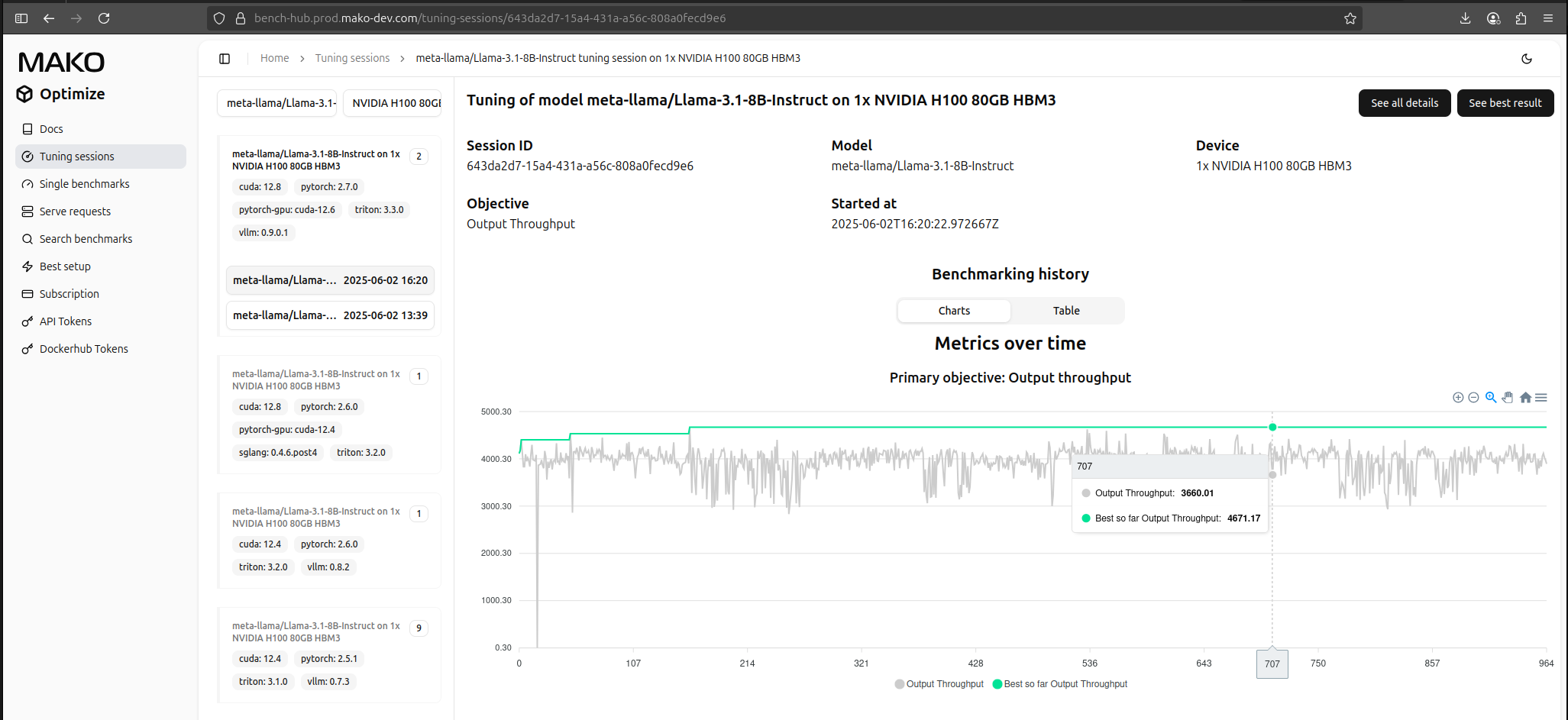
If uploading is enabled, starting a new tuning will create a new tuning session visible on the web platform, under "Tuning Sessions". Sessions using the same setting are grouped under the same card view, with the most recent ones at the top of a list (lists are collapsed by default, you need to click at your setting first). When clicked at any of the items on a list of sessions, a detailed view of tuning progress should appear, similar to the one below:
Warning
Even if all results have been uploaded to Bench Hub, it is currently impossible to resume tuning from there, only local files can be used.
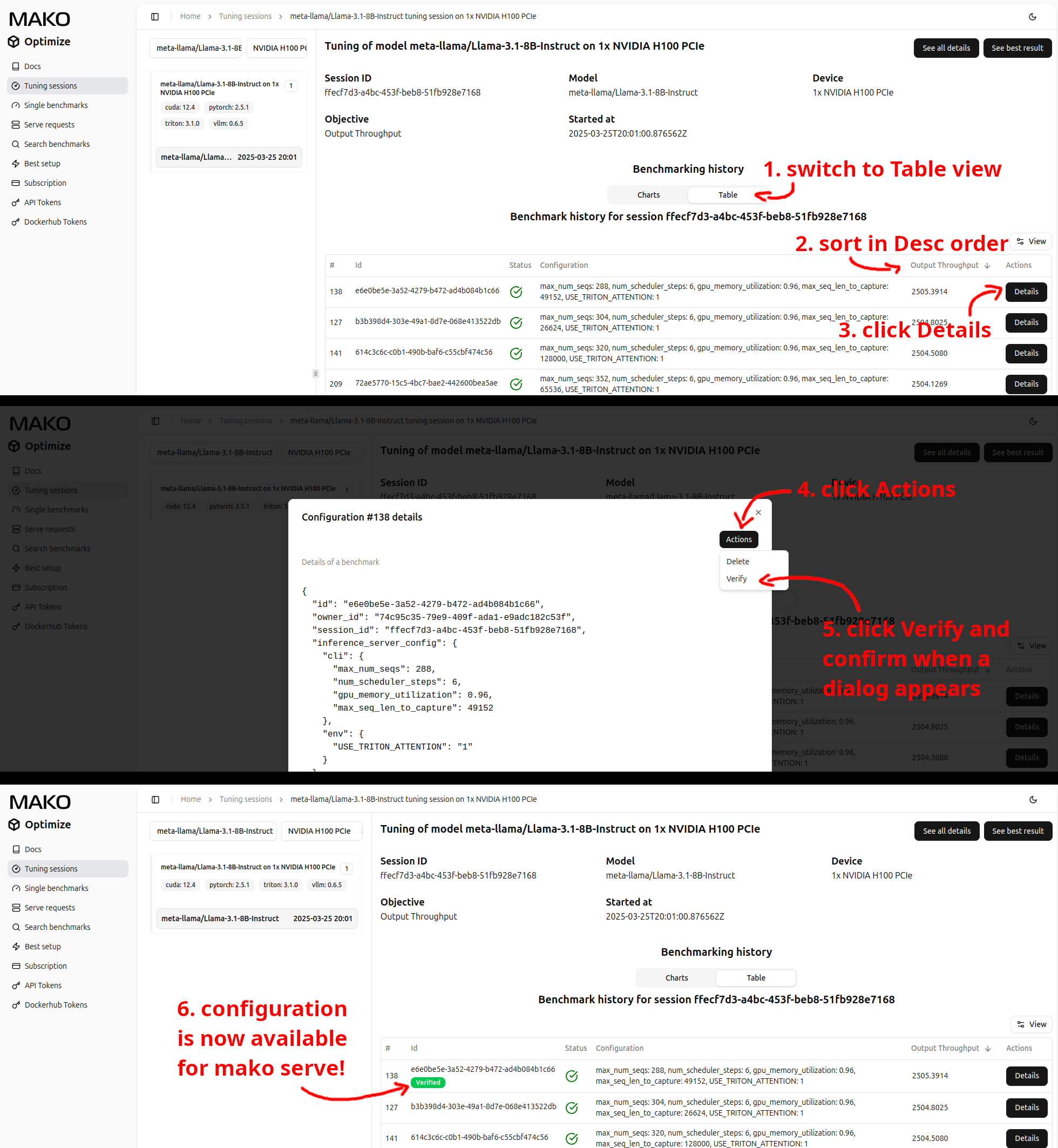
By default all results uploaded to Bench Hub are unverified, meaning they will not be used by mako serve, unless directly requested (see: enforcing serve configurations).
This is an intentional safeguard to prevent accidentally breaking any deployment that might use mako serve by uploading invalid configurations.
In order for a configuration to be considered for model serving with mako serve, it has to be first verified - the process to do that is outlined in the image
below.
Note
Remember to double check if a configuration works as expected in your mako serve's environment before marking it as verified in Bench Hub!
Results can also be un-verified and delete using analogous processes.
Note
All results uploaded to Bench Hub are assigned to your personal account and are not accessible by other users.
Therefore, in order to make mako serve use a previously verified result, you have to ensure it uses the same user's token for authentication.
Auxiliary trials
Some searching algorithms might decide to test configurations that do not strictly belong to the search space. In particular, this might be needed if the algorithm uses the obtained information to more efficiently navigate the search space.
Any such trial will be marked as auxiliary (or aux for short) in the tuning history and their overall number will be reported as + X aux in the CLI dashboard.
Except for providing extra diagnostic information about their origin, auxiliary trials are not currently handled much differently than normal ones. In particular, they can still be reported as the best identified configurations, if they happen to provide the best results.
Caching trial results
When tuning, if the same configuration is tried for a second (or any consecutive) time, it will not be re-evaluated but instead the searching algorithms will be provided with a cached result from the first evaluation.
Even though reuses are somewhat unlikely, they can still happen. For example, if:
- a searching algorithm fallbacks to picking a random configuration, after getting stuck in a local minima,
- a previously-interrupted tuning is resumed, or
- tuning is bootstrapped by manually providing an initial history file (see partial checkpointing).
This is reported in the CLI dashboard as + X reuse.
Serving
The main goal of mako serve is to determine and use the best known server configuration for a given model and hardware.
When making the decision, serving will consider configurations coming from either:
- the locally stored tuning results, or
- verified configurations from the Bench Hub.
Note
For a configuration to be considered for serving with mako serve, it had to be obtained by benchmarking/tuning done in
a setting compatible with the one associated with the serve command.
Apart from the parameters coming from a tuning's search space, serve will also attempt to determine model split parameters
by potentially considering results from multiple tuning sessions with different model splits.
The way this is achieved is by first determining how many GPUs are available and then asking for the best configuration for any amount not greater than this.
Check the output for indicators
Checking and enforcing configurations
Sometime it is desired to investigate what the final configuration used by mako serve is, or to even enforce using a particular one.
There are 3 ways in which the former can be achieved, with slightly different intended use cases:
- launching with increased verbosity (
--verbose 2) will log details about the considered and the final chosen server configuration to the standard output. Use this option if you are interested in learning why a certain configuration is used and not another. However, note that the reported value is still subject to combining with any user-provided arguments and potentially extra processing. - The final effective configuration, together with some extra parameters, can be saved to a file by using
--dump-config. Use this option if you want to investigate the final arguments used to start the downstream engine. - If Bench Hub is used to obtain results, each serve request and its response are logged and can be investigated under "Serve requests" in the web portal. Use this option if you want to monitor your deployed models in a centralized setting.
In order to enforce using a particular configuration, there are two options:
-
--engine-config-idcan be used to enforce using a selected configuration from Bench Hub - this configuration replaced "the best configuration" from the standard flow and is still subject to the usual processing. The ID of a configuration on Bench Hub can be found by clicking "Details" next to any benchmarking result.Note
Unverified results can also be used if they are supplied via
--engine-config-iddirectly.Since version 1.3.0
Any constraints specified when running
mako servewill be ignored when requesting a specific configuration. -
If complete control over the engine's parameters is desired, e.g., to overwrite some parameters of the best configuration, it can be obtained by bypassing
mako serveand instead calling the downstream engine directly. If you find yourself in a situation that would require that, consider checking what configurationmako servewould use by following one of the methods outlined in the previous list.