Getting Started with MakoOptimize
Using MakoOptimize consists of two related stages - ahead-of-time tuning and subsequent serving. Below, you can find a quick-start guide of how to trigger both processes and what to expect. A more detailed description is given in the technical description page.
Prerequisites
There are two ways of obtaining MakoOptimize:
- by using one of our pre-made docker containers - they are divided into a Free and a Pro tier;
- or by installing the core package in your own environment - only available for Enterprise users.
Using pre-made docker containers (default)
The list of available docker images for both the Free-tier and the Pro-tier users is available on its separate page.
Each docker contains our MakoOptmize package together with a relevant serving engine (vllm or sglang) and all necessary dependencies.
Different versions are tagged using a common convention:
makodevai/mako-optimize:vllm-v0.10.2-2.0.0
Note
MakoOptimize offers first-class support for both NVIDIA and AMD GPUs. However, since different hardware vendors use different software
stacks, different docker containers have to be used when working with different hardware. AMD dockers will usually have rocm somewhere in
the {engine_version} part of the tag, whereas the NVIDIA ones will not have any special indicators - keep an eye out to make sure
you use the right one for your hardware!
No extra steps are required to access the community dockers - you simply have to have docker installed and pull a relevant container.
In order to access and use the containers, you will need an account on https://optimize.mako.dev - this is required for both both the
Free and the Pro tiers, but might not apply to Enterprise customers. After you created an account, navigate to: https://optimize.mako.dev/dockerhub
to obtain your docker hub token. Then login as a makodevai user:
providing the token when asked for password.
To validate you can access your docker and MakoOptimize is present, you can run a command similar to:
where ... should include any desired docker arguments (such as name, etc.) and device access flags, and {chosen_mako_container} refers
to a container from either the mop or mop-community repositories with an appropriate tag, both as explained above.
For example, to validate a container using vllm version 0.10.2 with MakoOptimize 2.0.0 from the Pro tier repository,
the command to use can be like below:
Example output
Environment information:
---------------------------------------------
{   'distro': 'Ubuntu 22.04.5 LTS',
    'ip': '172.17.0.2',
    'name': '4a481a582c99',
    'system': 'Linux',
    'release': '5.15.0-151-generic',
    'arch': 'x86_64',
    'python': '3.12.11 (main, Jun  4 2025, 08:56:18) [GCC 11.4.0]',
    'nvidia': {'driver': '575.57.08', 'cuda': '12.9'},
    'apt': {   'cuda-compiler-12-8': '12.8.1-1',
            'cuda-libraries-12-8': '12.8.1-1',
            'cuda-libraries-dev-12-8': '12.8.1-1',
            'cuda-toolkit-12-8-config-common': '12.8.90-1',
            'cuda-toolkit-12-config-common': '12.8.90-1',
            'cuda-toolkit-config-common': '12.8.90-1'},
    'pip': {   'mako_optimize (commit)': 'e3842eeaf65dafdb3c5ae7949bd4acb8d91127a8',
            'mako_optimize': '1.2.0',
            'timm': '0.9.10',
            'nvidia-cusolver-cu12': '11.7.2.55',
            'nvidia-cudnn-cu12': '9.7.1.26',
            'nvidia-curand-cu12': '10.3.9.55',
            'triton': '3.3.1',
            'nvidia-cuda-cupti-cu12': '12.8.57',
            'nvidia-cublas-cu12': '12.8.3.14',
            'nvidia-cuda-runtime-cu12': '12.8.57',
            'nvidia-cufft-cu12': '11.3.3.41',
            'vllm': '0.10.1.dev1+gbcc0a3cbe',
            'nvidia-cufile-cu12': '1.13.0.11',
            'nvidia-cuda-nvrtc-cu12': '12.8.61',
            'transformers': '4.54.1',
            'nvidia-cusparselt-cu12': '0.6.3',
            'nvidia-cusparse-cu12': '12.5.7.53',
            'torch': '2.7.1+cu128',
            'torch_gpu': 'cuda-12.8'},
    'devices': [   gpuq.datatypes.Properties(CUDA[0 -> 0], 'NVIDIA H100 80GB HBM3')]}

Engine 'sglang' not installed
Using 'vllm' from: 'vllm.entrypoints.cli.main', with argss: ['serve']
Auto-detected engine: vllm

Mako configuration info:
---------------------------------------------
    Mako home: /root/.mako
    Data directories:
    - /root/.mako/data
    Config directories:
    - /root/.mako/configs
    - /usr/local/lib/python3.12/dist-packages/mako_optimize/configs
    - /usr/etc/mako

    Available workloads:
    - From file: /usr/local/lib/python3.12/dist-packages/mako_optimize/configs/workloads.yaml
        Dataset: sharegpt
            files:
            - filename: ShareGPT_V3_unfiltered_cleaned_split_no_imsorry.json
                url: https://huggingface.co/datasets/anon8231489123/ShareGPT_Vicuna_unfiltered/resolve/main/ShareGPT_V3_unfiltered_cleaned_split_no_imsorry.json
                checksum: 014bcc3352fd62df5bbb7fb8af9b4fd12f87bb8a2b48a147789f245176ac8e4f
            arg_name: None

        Dataset: rand_10k
            files:
            - filename: rand_10k.json
                url: https://huggingface.co/datasets/makodev/AutoVllmRandBench/resolve/main/rand_10k.json
                checksum: 2c8133e2d0da094315d246beba20fa5142627777b01d1bddd76acc615dc1e14e
            arg_name: None

        Dataset: rand_20k
            files:
            - filename: rand_20k.json
                url: https://huggingface.co/datasets/makodev/AutoVllmRandBench/resolve/main/rand_20k.json
                checksum: 98c6f48356480d361420d3cd6647aee2fb27aec6a33f3c5306c26b2ea9aa1d69
            arg_name: None

        Dataset: rand_30k
            files:
            - filename: rand_20k.json
                url: https://huggingface.co/datasets/makodev/AutoVllmRandBench/resolve/main/rand_30k.json
                checksum: 7cf428659c6eeee2908d448cb9de02954e366eb47b1ad3357c4fba02bbd45122
            arg_name: None

        Workload: default
            dataset: sharegpt
            max_model_seq: None
            num_requests: 500
            request_rate: None
            output_len: None
            min_prompt: None
            max_prompt: 1024
            min_output: 64
            max_output: None
            min_seq: None
            max_seq: 2048

        Workload: rand10
            dataset: rand_10k
            max_model_seq: None
            num_requests: 100
            request_rate: None
            output_len: None
            min_prompt: None
            max_prompt: None
            min_output: None
            max_output: None
            min_seq: None
            max_seq: None

        Workload: rand10_2048
            dataset: rand_10k
            max_model_seq: None
            num_requests: 100
            request_rate: None
            output_len: 2048
            min_prompt: None
            max_prompt: None
            min_output: None
            max_output: None
            min_seq: None
            max_seq: None

        Workload: rand10_4096
            dataset: rand_10k
            max_model_seq: None
            num_requests: 100
            request_rate: None
            output_len: 4096
            min_prompt: None
            max_prompt: None
            min_output: None
            max_output: None
            min_seq: None
            max_seq: None

        Workload: rand20
            dataset: rand_20k
            max_model_seq: None
            num_requests: 100
            request_rate: None
            output_len: 4096
            min_prompt: None
            max_prompt: None
            min_output: None
            max_output: None
            min_seq: None
            max_seq: None

        Workload: rand20_4096
            dataset: rand_20k
            max_model_seq: None
            num_requests: 100
            request_rate: None
            output_len: None
            min_prompt: None
            max_prompt: None
            min_output: None
            max_output: None
            min_seq: None
            max_seq: None

        Workload: rand30
            dataset: rand_30k
            max_model_seq: None
            num_requests: 100
            request_rate: None
            output_len: None
            min_prompt: None
            max_prompt: None
            min_output: None
            max_output: None
            min_seq: None
            max_seq: None

        Workload: rand30_4096
            dataset: rand_10k
            max_model_seq: None
            num_requests: 100
            request_rate: None
            output_len: 4096
            min_prompt: None
            max_prompt: None
            min_output: None
            max_output: None
            min_seq: None
            max_seq: None

Setting schema:
---------------------------------------------
mappingproxy({'device': 'some-device',
            'engine': 'some-engine',
            'engine_version': None,
            'model': 'some-model',
            'objective': ['some-objective'],
            'platform': 'some-platform',
            'sw': {'cuda': '12.9',
                    'pytorch': '2.7.1+cu128',
                    'pytorch-gpu': 'cuda-12.8',
                    'triton': '3.3.1'},
            'workload': {'dataset': 'sharegpt',
                        'max_model_seq': None,
                        'max_output': None,
                        'max_prompt': 1024,
                        'max_seq': 2048,
                        'min_output': 64,
                        'min_prompt': None,
                        'min_seq': None,
                        'num_requests': 500,
                        'output_len': None,
                        'request_rate': None}})

Tuning setting for default values:
---------------------------------------------
mappingproxy({'device': 'NVIDIA H100 80GB HBM3',
            'engine': 'vllm',
            'engine_version': '0.10.1.dev1+gbcc0a3cbe',
            'model': 'Example Model',
            'objective': ['output_throughput'],
            'platform': 'nvidia',
            'sw': {'cuda': '12.9',
                    'pytorch': '2.7.1+cu128',
                    'pytorch-gpu': 'cuda-12.8',
                    'triton': '3.3.1'},
            'workload': {'dataset': 'sharegpt',
                        'max_model_seq': None,
                        'max_output': None,
                        'max_prompt': 1024,
                        'max_seq': 2048,
                        'min_output': 64,
                        'min_prompt': None,
                        'min_seq': None,
                        'num_requests': 500,
                        'output_len': None,
                        'request_rate': None}})

Available tuning objectives:
---------------------------------------------
completed                  –  Total number of completed requests.
request_throughput         –  Number of completed requests per second.
sending_throughput         –  Rate at which input tokens are sent to the server (tokens/sec).
input_throughput           –  Rate of input tokens processed by the server (tokens/sec).
output_throughput          –  Throughput of generated output tokens (tokens/sec).
mean_ttft_ms               –  Average time to first token (ms).
median_ttft_ms             –  Median time to first token (ms).
std_ttft_ms                –  Standard deviation of time to first token (ms).
p99_ttft_ms                –  99th percentile of time to first token (ms).
mean_tpot_ms               –  Average time per output token (ms).
median_tpot_ms             –  Median time per output token (ms).
std_tpot_ms                –  Standard deviation of time per output token (ms).
p99_tpot_ms                –  99th percentile of time per output token (ms).
mean_itl_ms                –  Average inter-token latency (ms).
median_itl_ms              –  Median inter-token latency (ms).
std_itl_ms                 –  Standard deviation of inter-token latency (ms).
p99_itl_ms                 –  99th percentile of inter-token latency (ms).
Note
The containers require access to GPUs to be able to run any mako command. The commands above assume all necessary support from the OS and/or
docker daemon is in place and expose all locally available devices using typical parameters. If you run into any problems, or if you want to change
which GPUs are shared and how, please consult appropriate documentations on using GPUs in docker from
NVIDIA or AMD.
This should print a bunch of information about your system and the current configuration of MakoOptimize.
We will ignore the specifics of what is displayed for now, though - if you are interested in learning more, see
a dedicated page for mako info.
If everything works, let's go through some common environmental notes and then try to run some tuning.
Using a standalone package in your own environment (Enterprise users only)
If you are an Enterprise user and have direct access to the package, you should begin by making sure the engine you want to use is installed in your environment (since MakoOptimize can be used different engines and their versions, it will not attempt to automatically install any). After the engine is installed and confirmed to run, the rest of the stack can be added by simply installing the provided wheel file.
After this is done, you can validate your installation by running mako info in the terminal - if it
correctly outputs all information about your system (pay special attention to detected engines and
their versions) then your client environment has been correctly configured.
If you want to use Mako's web backend when tuning, the above is enough and you can move on to the next page for details. Otherwise, you will need to perform additional steps to setup the web backend within your organization's premises. Please check any communication from us regarding the necessary steps.
As usual, if you run into any problems, please contact us.
Environmental prerequisites
For a simple mako info command as shown above you do not need to prepare much.
However, for any practical scenario, involving running models, storing results, etc.,
there is a number of things to keep in mind.
- For both tuning and serving outlined below, you will need to provide MakoOptimize's API token,
by setting the environmental variable
MAKO_OPTIMIZE_TOKEN. You can check your user's token at https://optimize.mako.dev/tokens. Note: this is a different tokens than the docker hub token used to download the container. All the following commands assume this environmental variable is set in the parent shell used to run the docker commands, and propagate it to the container. - Tuning will store both the final and intermediate results, as well as its logs, etc., in local storage.
When running things in a docker, this means that by default all the information will be lost
when the container is exited. Most of the time this is undesired, so in the following sections
we will be specifying MAKO_HOME environmental variable
to a location in the container backed-up by a host's directory under
./workspace. You can adjust this decision to your liking - please consult the links mentioned earlier for details. - By default, we rely on HuggingFace to download the specified model. Therefore, you should make sure
you have correct access to it in the environment where you run
mako tune. This can be done, for example, by setting an environment variableHF_TOKENto your HuggingFace user's access token with necessary scoping. See their documentation on access tokens and the HF_TOKEN variable. Forgetting about this step can result in errors mentioning "Gated repository" early during the tuning process. Similar to the MakoOptimize API token, in the following sections we will assumeHF_TOKENis already set in the parent shell. - If a specified model is missing, HuggingFace library will download it automatically to the local
cache directory. Similar to the tuning data, most often it is desired for this location to be
persistent to avoid repeated downloads. In the following sections we will do that by setting
HF_HUB_CACHEvariable to./modelson the local host.
Tuning
Tuning is the process of automatically searching for the best set of deployment parameters for a given model - these include command line arguments and environmental variables exposed by a relevant engine. In technical jargon, we perform hyperparameter optimization over the space of possible configuration values of an engine.
Starting a tuning is straightforward, in your environment simply run:
This will start the tuning process using sensible defaults, most of which can be overwritten if needed. Consider reading a technical section about parametrization of tuning if you want to explore your options in that regard.
Taking into account all the previously mentioned things, a full docker run command to start tuning of a small Llama 1B model on a single H100 might look like:
docker run -it --rm --name mako-test \
    --runtime nvidia --gpus all \
    -e MAKO_OPTIMIZE_TOKEN="$MAKO_OPTIMIZE_TOKEN" \
    -e HF_TOKEN="$HF_TOKEN" \
    -e HF_HUB_CACHE="/models" \
    -e MAKO_HOME="/workspace" \
    -v ./models:/models \
    -v ./workspace:/workspace \
    makodevai/mako-optimize:vllm-v0.10.2-2.0.0 \
    mako tune meta-llama/Llama-3.2-1B-Instruct
docker run -it --rm --name mako-test \
    --runtime nvidia --gpus all \
    -e MAKO_OPTIMIZE_TOKEN="$MAKO_OPTIMIZE_TOKEN" \
    -e HF_TOKEN="$HF_TOKEN" \
    -e HF_HUB_CACHE="/models" \
    -e MAKO_HOME="/workspace" \
    -v ./models:/models \
    -v ./workspace:/workspace \
    -v /etc/passwd:/etc/passwd:ro \
    -v /etc/group:/etc/group:ro \
    --group-add $(getent group video | cut -d: -f3) \
    --group-add $(getent group render | cut -d: -f3) \
    -u $(id -u):$(id -g) \
    makodevai/mako-optimize:vllm-v0.10.2-2.0.0 \
    mako tune meta-llama/Llama-3.2-1B-Instruct
Warning
The command above is specific to Linux and assumes your user belongs to groups video and render,
which are common means of group-based access to GPUs. Please consult your OS's documentation
and/or configuration if these values do not work for you.
Upon starting a tuning session, you should see a TUI dashboard in your terminal, outlining the progress and the current status of the entire process. In particular, the command above should result in a view similar to:
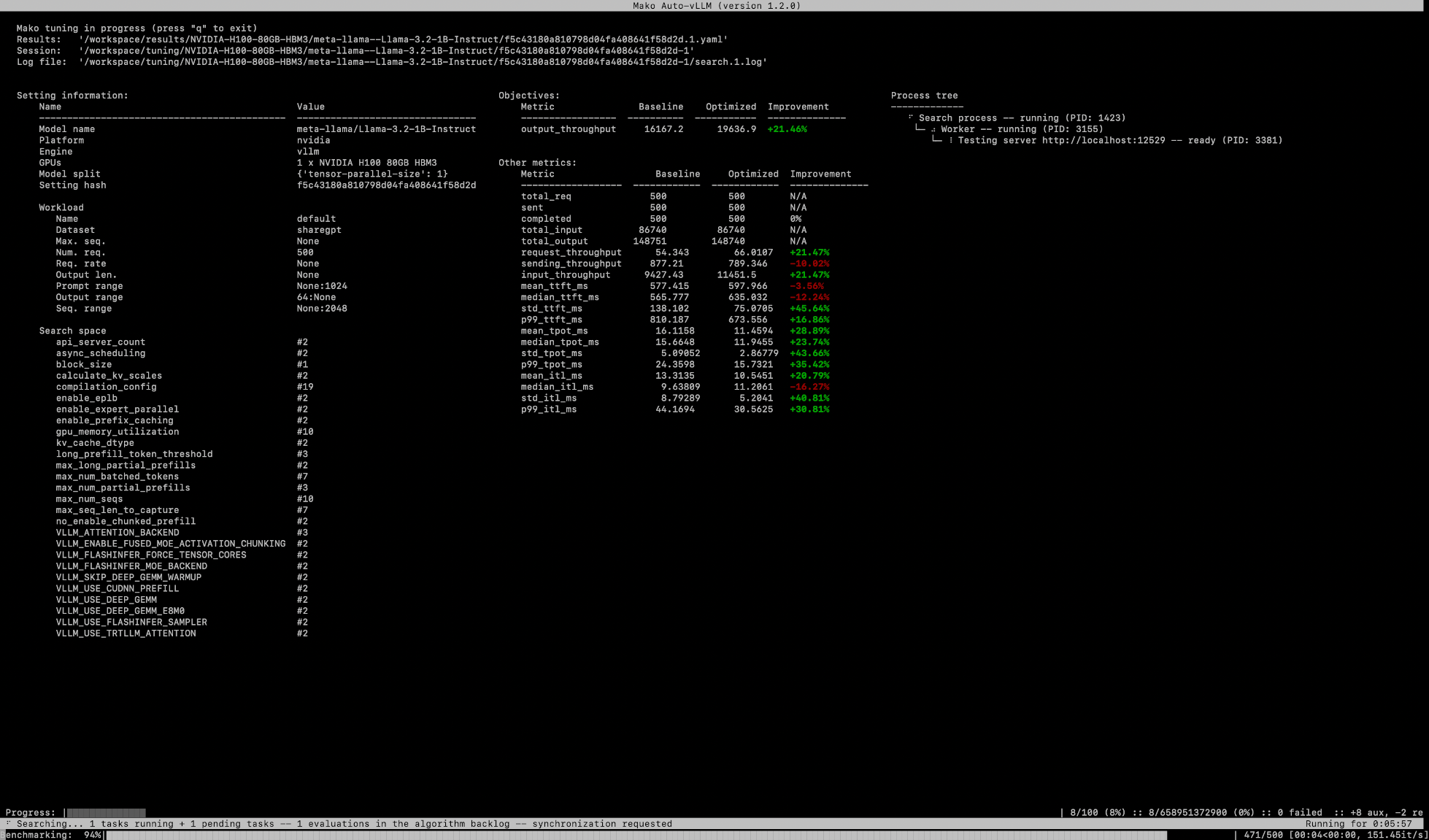
Tip
If for some reason the TUI dashboard is not desired, you can disable it by using an environmental variables MAKO_NO_TUI=1 when launching mako tune.
You can also close the TUI by hitting q.
Upon starting a tuning session, it should also appear in the web portal. There, you should be able to see a detailed history of different configurations and their performance, similar to the below:
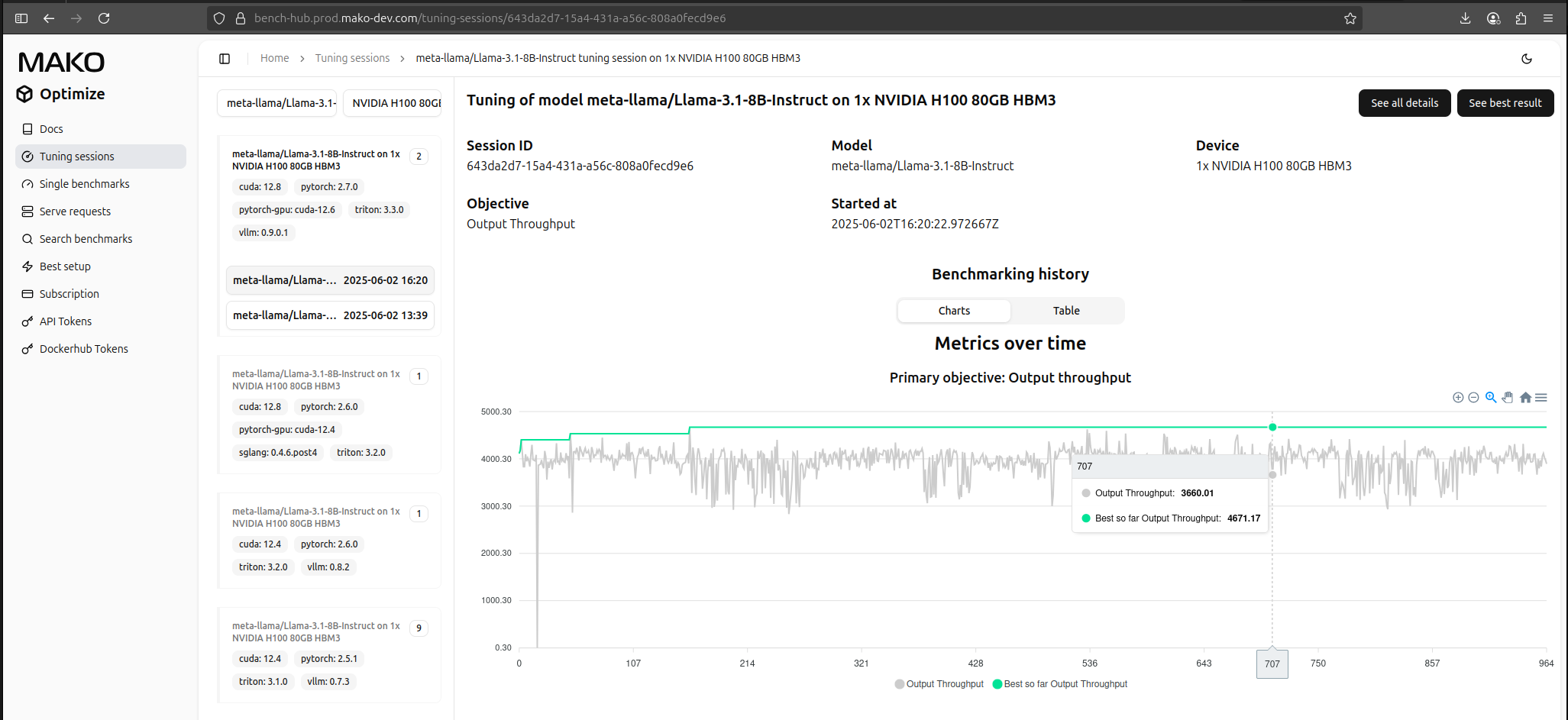
During its work, tuning will iteratively:
- start a server with a candidate configuration,
- benchmark it with appropriate workload,
- record performance and stop the server.
We will refer to a single iteration like that as evaluation. There is also a concept of a trial, which extends the former to iterations during which benchmarking has not been done (this might happen if, e.g., the result was cached).
Because the number of possible configurations can be extremely large, and starting and stopping a server is time-consuming on its own, the entire process can take very long time (days, weeks).
By default we do not constrain it, so it can pretty much run "forever".
To stop tuning, simply interrupt it with ctrl+C (or a related OS signal).
We recommend keeping an eye on the tuning process and interrupt it if:
- performance of the best configuration stays very close to the baseline even after ~1 day
- the vast majority of evaluations have failed (mentioned in the bottom right corner), but note that some failures are expected, during the first ~200 evaluations
- you have reached >1k evaluations (although, if performance keeps improving, it is perfectly fine to keep trying).
Alternatively, you can also consider stopping the tuning using one of the available automatic stopping criteria.
Tip
Tuning checkpoints its state regularly. Therefore, even if it stops or is otherwise interrupted, you can easily resume it from its last state, as long as the necessary files are still present. See technical notes on checkpointing and a tuning session directory.
While tuning is running, all trials are recorded on the local storage and, optionally, on our web platform.
This includes keeping track of the best identified configuration, which - at any point - can be used to serve a model easily using mako serve.
Whenever you feel like your tuning results are good enough, or are not going to get any better, stop the tuning and let us try serving a model.
Serving
Serving a model with mako is analogous to serving it using the relevant downstream engine, with the main difference being that mako serve will attempt to automatically adjust the engine's parameters for optimal performance.
During the startup phase, mako serve will detect what engine is available as well the number and model of GPUs.
This information (and a bit more) is then used to determine the best configuration for the engine.
In order for this to work, tuning must have been performed earlier and its results have to be available either locally or on the web platform.
Bench Hub Integration
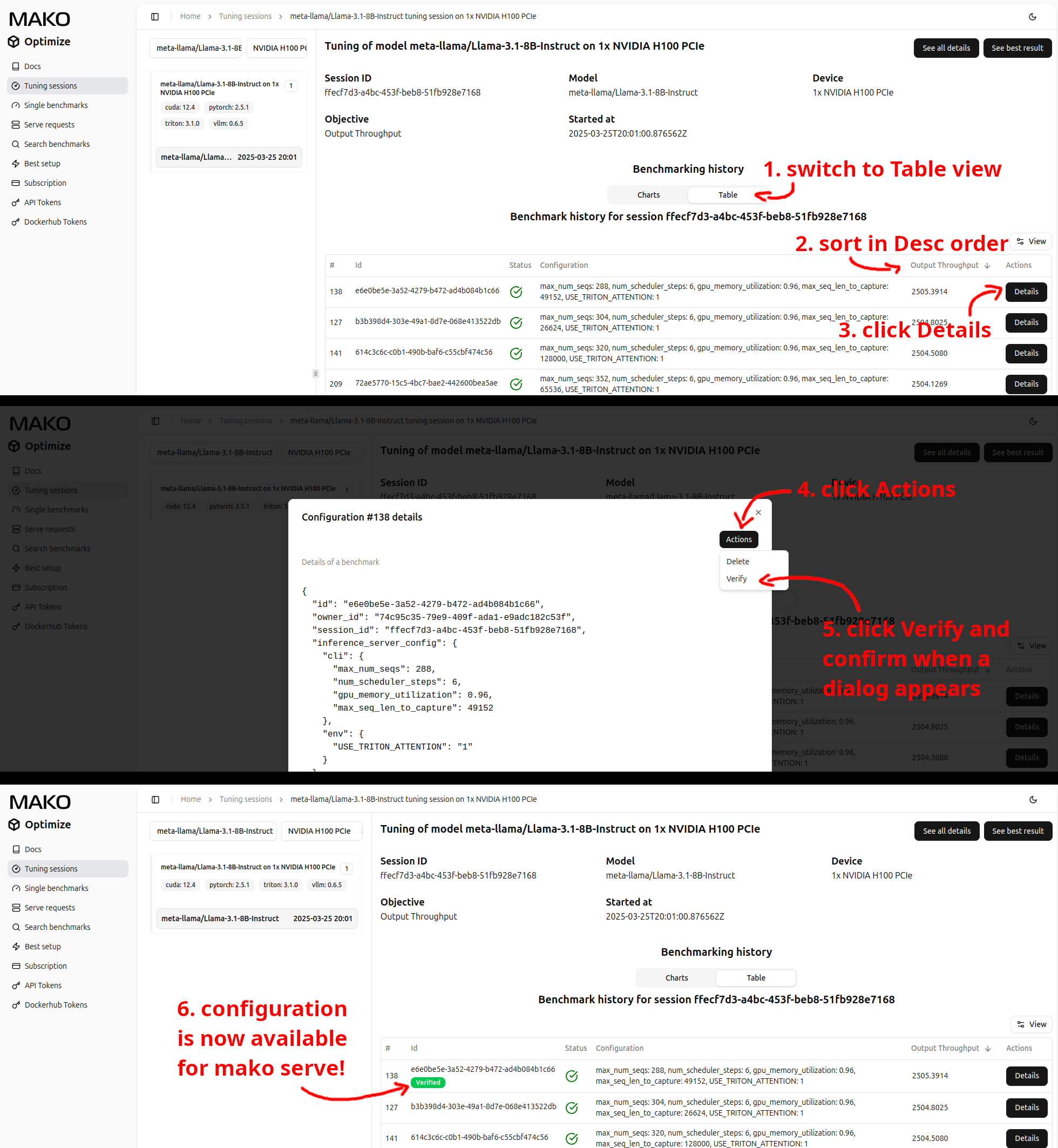
If you plan to serve a model using a configuration stored on Bench Hub, it needs to be marked as veried first.
This is a safeguard that prevents mako serve to unexpectedly break, if it relies on the data on Bench Hub and something went
wrong while uploading results and invalid configuration has made its way there.
They way it works is that by default all uploaded results from tuning are unverified and will not be automatically used
by mako serve (they might be used if requested directly, though).
If there is a promising configuration, we recommend you double check its performance in a separate environment (e.g., your
production environment) - if it behaves as expected, you can then mark it as "verified" in Bench Hub and it will then be
automatically used by any subsequent mako serve. See the image below to see how to do that.
See technical details for more information.
To server our optimized Llama model, simply run:
You can pass any additional arguments that you would normally pass to the underlying engine (such as --port, etc.) and MakoOptimize will pass them through to the engine.
However, they are subject to being overwritten by the arguments that come from the best configuration, so keep that in mind.
If everything goes well, you should see the usual vllm/sglang output saying a server is ready. If you want, you can then validate its performance by running mako benchmark meta-llama/Llama-3.2-1B-Instruct --address localhost --port 8000 (adjust address and port according to your needs).
This will use the same benchmarking methodology and data that is being used when tuning, so you should see results matching those reported during tuning.
Note
Some variation in results is possible due to the process being not fully determinist by nature.
Note
We offer pre-optimized configurations for popular models for our Pro users - if you are one of them, do not be
surprised that mako serve might use a different configuration than the one from your tuning!
See technical notes on how to check what configuration is used and enforce a specific one.
Congratulations! You have just tuned and deployed your first optimized model with MakoOptimize! While there is still a lot more to explore, the fundamentals covered here should stay relevant no matter what you are trying to do with MakoOptimize.
Next steps
Explore available commands:
mako info- Show environment/configuration informationmako serve- Launch a model servermako benchmark- Benchmark model performancemako tune- Automatically tune engine parameters
Deep dive into the technical specifics.
Or browse our catalog alogue of per-optimized models.